
Order Tiger integration with Shipday
Shipday API Integration Setup
This section is intended for Marketplace and Multi-Store Owners.
If you are managing only one store, our team can assist you with the setup.
Before you begin, make sure:
- Your Shipday account is active
- Your drivers and teams are already configured in the Shipday dashboard
- You have your Shipday API Key ready
Once everything is prepared, you can complete the integration directly from your Order Tiger Dashboard.
Step 1: Log in to the Order Tiger Dashboard
Access your account using your login credentials.

Step 2: Switch to Location View or Company View
Depending on how you want to configure Shipday:
- Location View → Connect Shipday to a single store.
- Company View → Connect Shipday to all store locations at once.
Make sure you are in the correct view before proceeding.
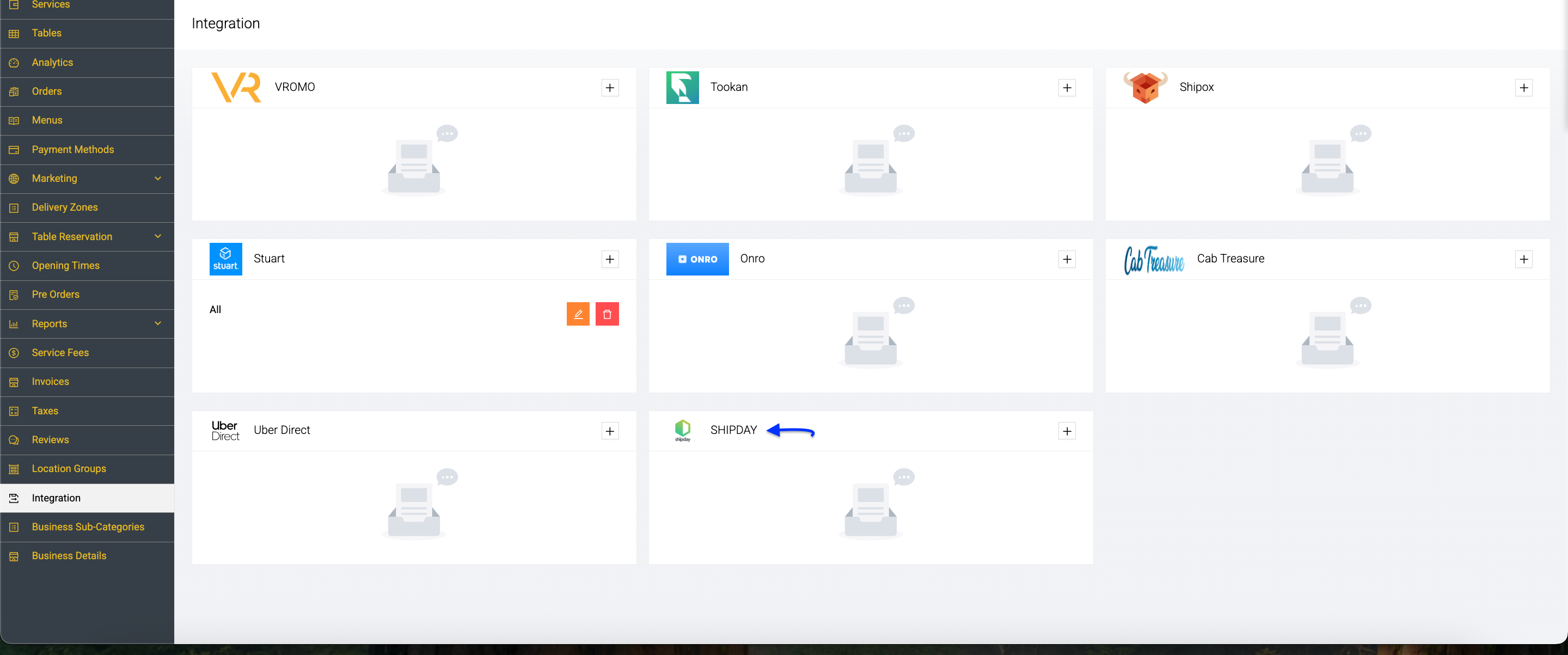
Step 3: Open the Shipday Integration Panel
- Go to Integration in the left-hand menu.
- Locate the Shipday integration box.
- Click the
+button.
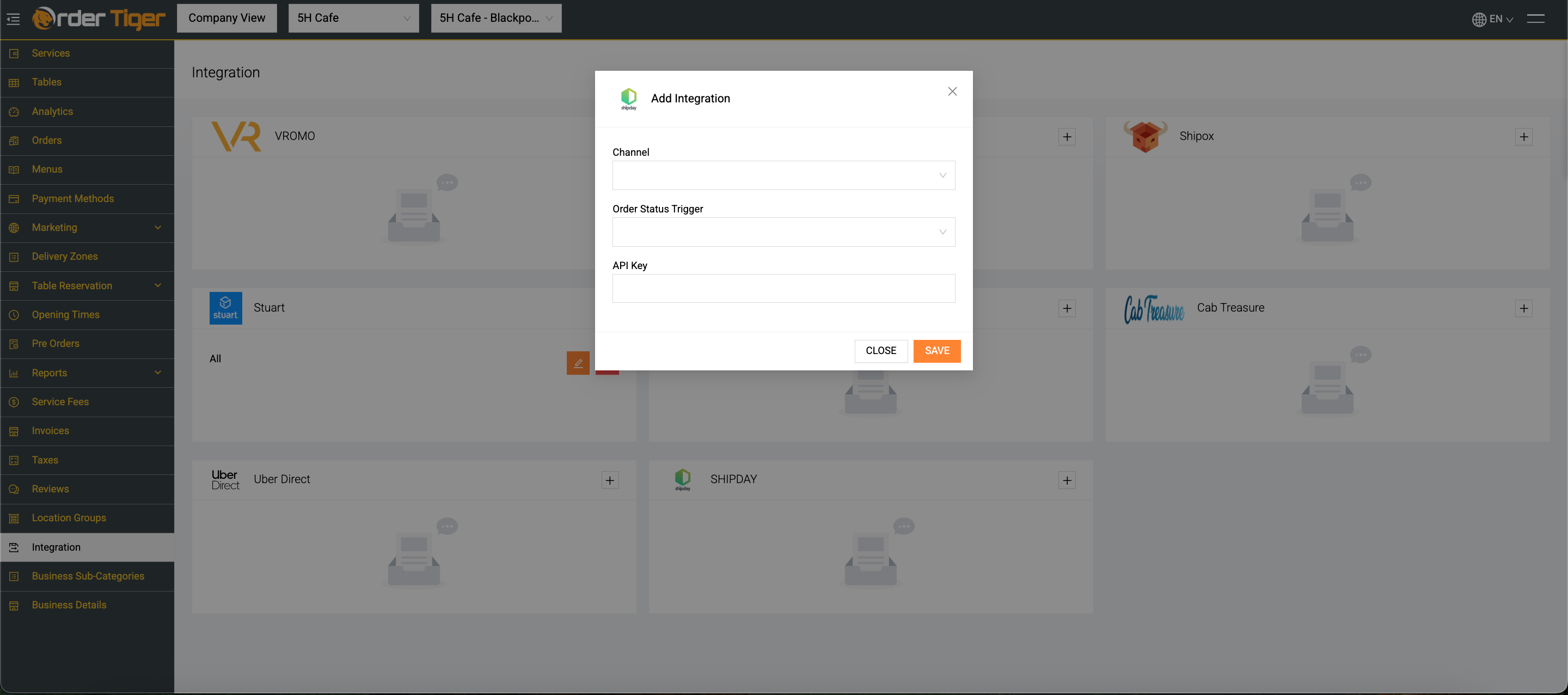
A configuration window titled Add Integration will appear.
Step 4: Complete the Integration Fields
In the Shipday integration pop-up, you’ll see the following fields:
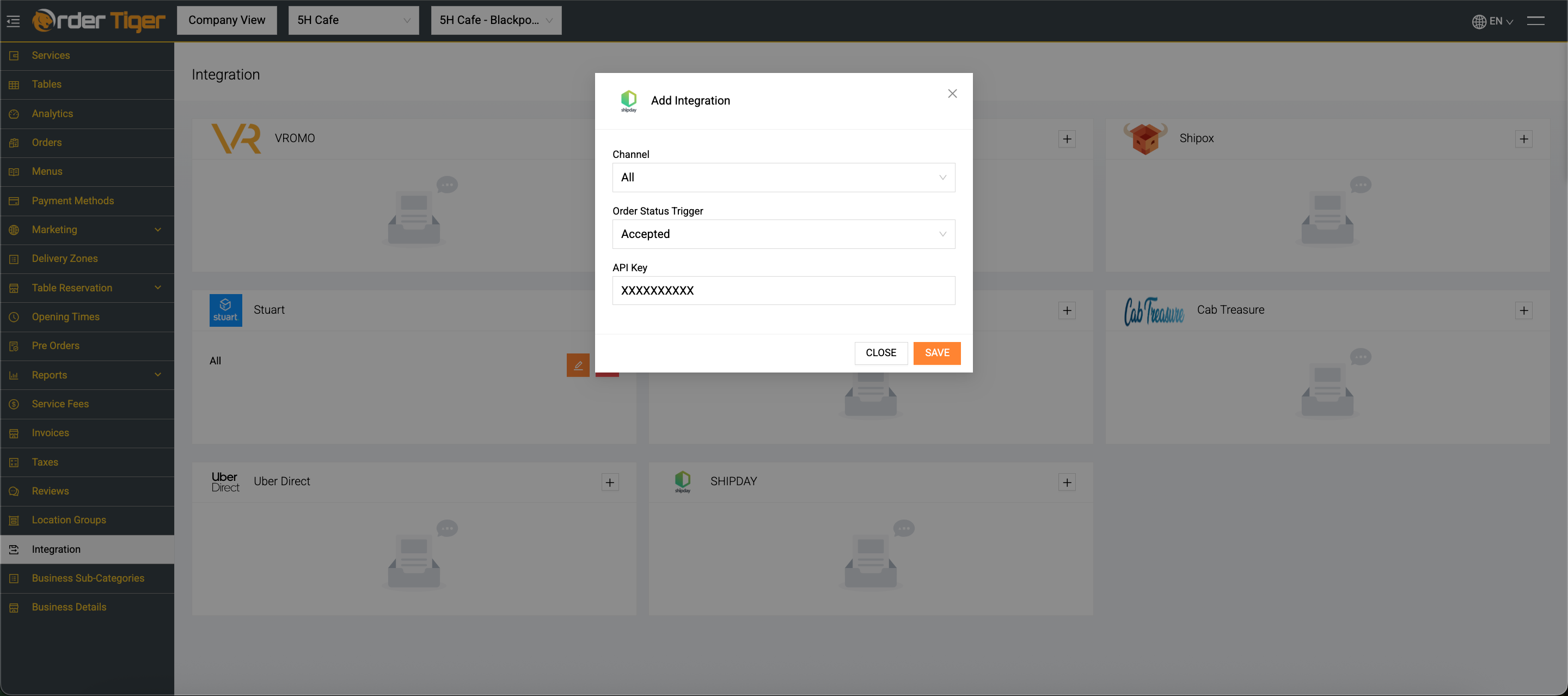
Channel
Select which ordering channels should send orders to Shipday:
- Web – Orders placed on your website
- iOS – Orders placed via your iOS app
- Android – Orders placed via your Android app
- All – Recommended option (sends all online orders to Shipday automatically)
For most businesses, selecting All ensures no orders are missed.
Order Status Trigger
Choose when the order should be automatically pushed to Shipday.
Available options may include:
- Accepted (Recommended) Order is sent to Shipday immediately after you accept it.
- Ready to Pick Up Order is sent when preparation is complete.
- Pending / On Its Way (if available depending on setup)
👉 Best practice: Select Accepted so drivers can be assigned early and delivery timing can be optimized.
API Key
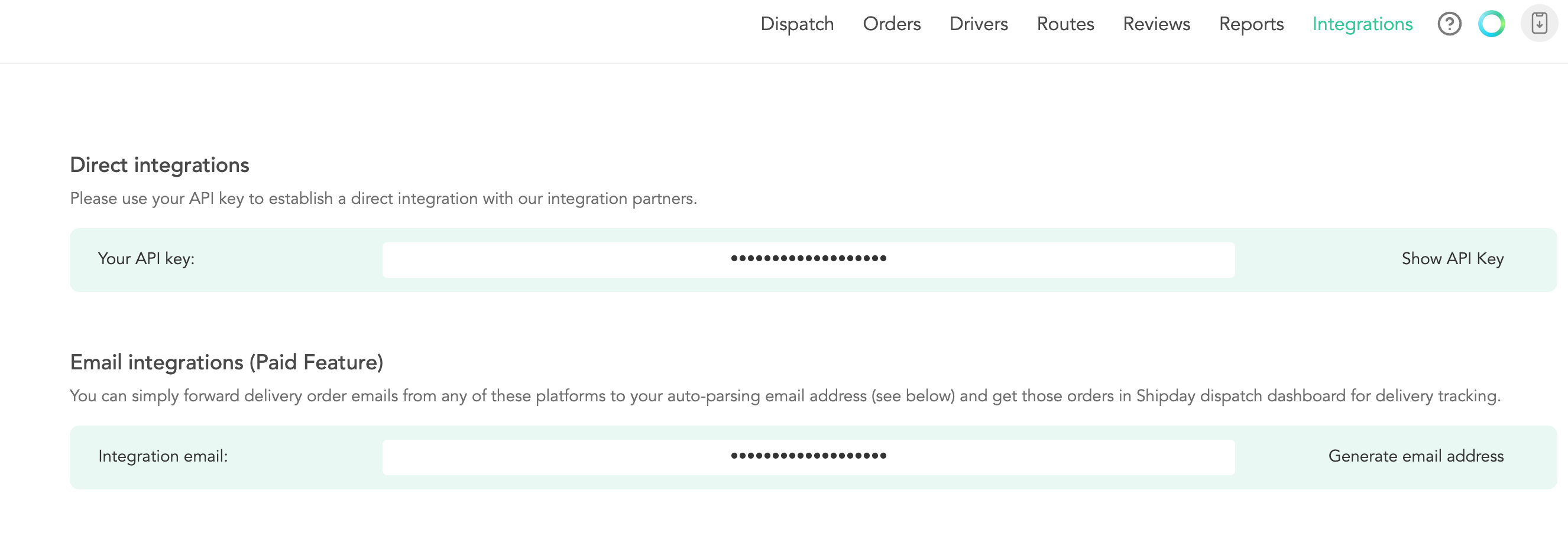
Enter your Shipday API Key in this field.
To find your API key:
- Log in to your Shipday dashboard.
- Go to your account or developer/API settings.
- Copy your API Key.
- Paste it into the API Key field in Order Tiger.
Make sure there are no extra spaces when pasting the key.
Step 5: Save the Integration
Once all fields are completed:
- Click Save.
- The integration will activate immediately.
Your orders will now automatically sync from Order Tiger to Shipday based on your selected trigger.
What Happens After Activation?
Once connected:
- Orders are automatically sent to Shipday.
- You can assign drivers (in-house or third-party).
- Customers receive real-time tracking updates.
- You can monitor delivery progress directly from Shipday.
Your last-mile delivery process is now fully automated and streamlined.
Need help? Email support@shipday.com
Ready to get started?
Play around with it first, add your team, pay later.